Image Deep Fryer
Deep fry any picture or meme: pick a fry level from Light to Nuclear, then add a bulge, red glow, emoji, lens flares or meme text. Animated GIFs stay animated.
- 1Choose an image
- 2Fry it
- 3Download
1Choose an image
or drop an image or GIF here, or paste one with Ctrl/Cmd+V
Your image never leaves your device. All the effects run in your browser. We count anonymous page views (no cookies).
2Fry it
Pick how fried, then fine-tune:
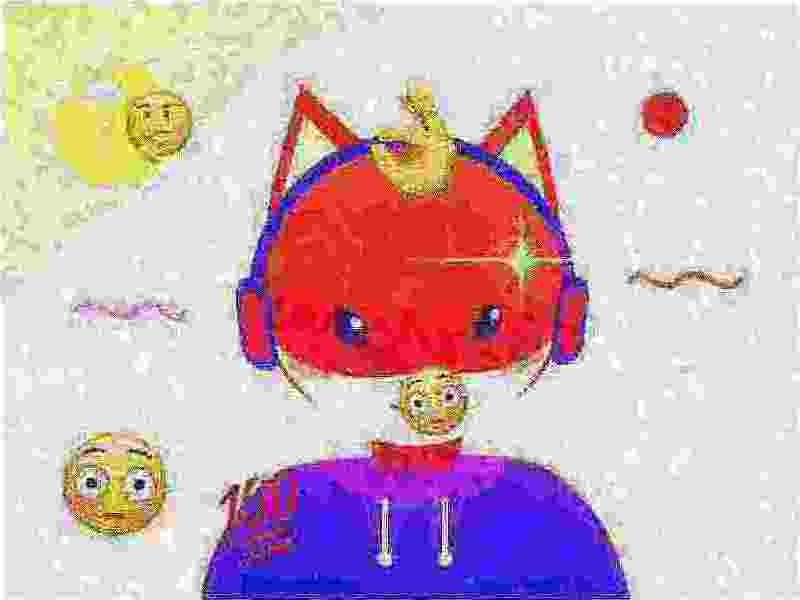
Before and after
The example image above, fried with the Extra crispy preset and saved as JPG.

What each setting does
- Saturation and contrast pushed far past normal give the burnt, glowing colors of a deep-fried meme.
- Sharpen exaggerates every edge, so outlines and grain look crunchy.
- Noise adds random grain, and the JPEG saves smear it into blotches.
- Red glow gives the picture a hot orange-red cast and makes its brightest parts bloom.
- JPEG quality and times re-saved compress the picture hard, again and again, for blocky squares and color smears.
- Bulge swells the area around one point, like a fisheye. Click the picture to choose the point.
- Emoji and lens flares scatter 😂 👌 💯 🔥 and glowing flares over the picture. Press Shuffle for new spots.
- Meme text adds white capital letters with a black outline at the top and bottom, and gets fried along with the picture.
FAQ
What is a deep-fried image?
A deep-fried image is a picture or meme edited on purpose to look burnt and degraded: extreme saturation and contrast, heavy sharpening, grain, and blocky artifacts from being saved as a low quality JPEG many times. Bulges, lens flares on the eyes and emoji like 😂 and 👌 are common extras.
How do I deep fry an image?
Choose a picture above and press Light, Medium, Extra crispy or Nuclear. Fine-tune with the sliders, add a bulge, emoji, flares or text if you like, then press Download. To fry it even more, download it, choose the fried file again and fry it a second time.
Can I deep fry a GIF?
Yes. Drop in an animated GIF and choose GIF as the format: every frame is fried with the same settings and the animation keeps its timing. The preview shows the first frame. Animated output is limited to 300 frames and 640 px on the longest side, so long or large GIFs are made smaller.
Should I download a JPG or a PNG?
JPG is the classic choice: it is the smallest file and adds one more round of crunch. PNG saves exactly what you see in the preview. The size of the JPG is shown under the preview before you download.
Is it free? Is there a watermark?
It is free, with no sign-up and no watermark on the picture you download.
Does this tool upload my image?
No. The picture is read, fried and saved by your browser on your own device. Your image is never sent to a server. You can check: open your browser's developer tools, go to the Network tab, and use the tool. No request carries your image. The only request the page makes on its own is an anonymous page-view count with no cookies and no file data (see privacy).
More free tools
- Low Quality Image MakerCrush, pixelate or blur a picture
- Recolor ImageChange or remove one color
- Twitch Emote ResizerTwitch emotes, sub badges and Discord emoji
- PFP CropperCrop a circle profile picture
- Round Corners on ImageRounded corners, transparent PNG
- Video Frame ExtractorSave a frame from a video or GIF